Friday, 10 January 2014

Android and Windows convertible Asus Transformer Book Duet TD300


Asus Transformer Book Duet TD300
The Asus Transformer Book Duet TD300 is with a new concept. That is with only one processor Android and Windows 8.1 are performed and it can be interchanged just by pressing a button. A data exchange between the operating systems is provided. As the first “quad- mode device “means the Asus Transformer Book Duet TD300.

It comes with a 13.3- inch display with full HD resolution works on both Windows 8.1 and Android 4.4 Tablet in each case as well as a notebook. Not two separate computer solutions for use, but both operating systems are running on an Intel CPU with Haswell - engineering - but come unlike past - offered by Asus. Unlike the media suspects in advance, Windows, and run Android not parallel through virtualization.

Rather, the state of the operating system freezes when switching and stored on the SSD, then just run the other OS. For a change there is a function key, it takes just four seconds, according to Asus. Both operating systems can access a shared folder so that data between Windows and Android can be exchanged. The entire procedures have Asus and Intel jointly developed and according to Asus patented.

In principle, the solution is hardly surprising, since Android for years been running on x86 CPUs, Intel had first adapted it for Atom Smartphones. The fact that the Google OS will run on the large core processors, is technically possible for some time. Whether, as suggested in unconfirmed reports, dispute with Microsoft that has so far prevented, is an outstanding issue.

Anyway, Intel kept its Android version only very slow in comparison Atom SoCs ago. As with the Atom Convertible Tablet T100 is in the part of the TD300 only a very meager when compared to notebooks equipped with a 128 GB SSD and a Micro SD slot. The keyboard dock has an additional 1 TB hard drive, ports for USB 2.0, 3.0 and HDMI as well as a jack for Gigabit Ethernet.

The graphic is provided by the HD Graphics core in the processor, main memory consists of 4 GB DDR3L. It can spark the device after 802.11ac wireless, Bluetooth 4.0 EDR and LTE - but probably not in all trim levels. As with the new Asus Zenfones are so far only to the minimum price of $ 599 plus tax, which likewise possible Core i7 processor along with LTE module is unlikely to be installed.

Acer Liquid Z5 Dual Sim Smartphone in CES 2014


Acer Liquid Z5
Acer has unveiled the Liquid Z5 in CES 2014 at Las Vegas. Liquid Z5 is an Android device which can accommodate two sim cards with button for selectable operating mode. The Liquid Z5 is one of the entry-level Smartphone. A mere 4 GB of internal memory is there.

There is a slot for micro - SD cards up to 32 GB. Also there is a RAM of about 512 MB comparatively lesser memory. The 5- inch screen also has a resolution of 854 x 480 pixels and is not stable perspective. The color display seemed sufficient for this.

Dimensions and weight are according to Acer at 145.5 x 73.5 x 8.8 mm and 147 grams. The processor is of unknown type and has two cores, each with 1.3 GHz. In addition, Acer plans to ship the device to Europe with two SIM card slots. The camera has only 5 megapixels, but is more precise but it offer comparatively light-sensitive pixels.

In addition, the optics allows plenty of light through (f/2.4). Acer supplies the Z5 with Android 4.2 Jelly Bean. For this model there won’t be any security updates or new features. The manufacturer thus saving costs, the buyer then has left behind.

For relatively low-cost Android Smartphones, manufacturers won’t give much importance for any updates. Acer had offers several modes that can facilitate the operation, or restrict with the help of Android. For children use there is a special child mode with the limited access to a few apps.

But there is also a mode for seniors, which provides about extra large buttons. Switching between the modes can also be secured with a password. Acer will release this at the end of January 2014 for a price of around 170 Euros.

6 Highly Useful Mozilla Firefox Tips and tricks to improve your Browsing Experience


Firefox
Do you prefer Firefox than other browser? Then this Browser is really cool and effective one to deal with!

Tips and tricks In Order improve your Browsing Experience:

1. Yank your Firefox Screen for Optimal Use

• To reduce Size of your Icons to Get More Screen Space Right-Click the empty space and Select Customize. You will immediately find “Use Small icons”. The preview change may happen by checking and un checking to find out the best one.

• You can easily increase the Text Size of your Web Page By using Ctrl & + and Ctrl & - you may increase or decrease text size. Ctrl & 9 Reset them to default size.

• Use F11 to fill the entire webpage and Press once again to previous mode.

1. Create Keywords for Important BookMarked Sites You can fast get to bookmarked pages at a faster mode by creating shortcut keys. For instance got to bookmark items, right-click specified bookmark and select “Properties”. Enter the shortcut key to browse faster.

2. Key Board Shortcut keys for Firefox 

• Keyboard Space bar to Scroll Faster

• Use Ctrl + Shift + B and Ctrl + Shift + H to open Bookmark and History page.

Ctrl + F to open Find box to locate words and phrases easily.

• Use Ctrl + Shift + Delete for clearing the Browsing History.

3. Move At a much Faster Rate with Firefox 

Ctrl + Tab to skip from one tab to another

Ctrl + (1 to 9) to move to specific Tabs in your browser.

Ctrl + T for New Tab • Ctrl + N for New Windows.

Shift + Ctrl + T to unknot Close tab. (Revive Closed Tab)

Ctrl W to close an Open Tab. (Close the Current Tab)

4. Utilize Firefox Address and Search Bars to Browse Faster

• Bring into play Ctrl + D to open Up Bookmark Window.

• Bring into play Ctrl + K for highlighting Search Bar.

• Bring into play Ctrl + L for highlighting Location Bar.

a. Complete a web address using Ctrl + Enter for (www and .com).

b. Complete a Web address using Shift + Enter for (www and .net).

c. Complete a Web address using Ctrl + Shift + Enter for (www and .org).

5. How to swiftly locate precise Tab on Firefox 

Ctrl + Shift + E for creating “Tab Groups”. This would display the tab as Thumbnails. It is your wish to select anyone of them.

 • Utilize % in URL to know what Tabs are open. It Provide the list of Tabs.

A brief Explanation of Trips and Tricks

This would have let you some knowledge on Firefox. People usually think Firefox as little tougher to use, but rather it is more when you know the shortcut keys available in them. If you keep on using this you might turn out to be expert in using Firefox. So these are the Tricks and tips to deal up with Firefox.

How To Protect Yourself From Online Fraud


Although making purchases online is very convenient, it is only reasonable that some consumers might be reluctant to carry out certain transactions online, particularly when personal or financial information is involved. After all, it was only very recently that Malaysian police took action against a network of online scammers who illegally obtained more than $1 million from their victims in Malaysia and Taiwan.
Still, buying goods online is generally safe, and research carried out by Rakuten showed that 71 per cent of Malaysian online shoppers are satisfied with their purchases. But whether you are buying music, books, cars, or furniture, it pays to keep the following advice in mind in order to protect yourself from online fraud.

Protect your computer

The first thing you can do to reduce the chances of experiencing online fraud is keeping your computer or internet-enabled device up to date with the latest security software. Keep in mind that malicious software can access confidential information you may have stored in your device and make it accessible to hackers. Don't only install an anti-virus, but download any updates and scan your computer regularly. Also, don't rely on anti-virus only, but also install anti-spyware software for enhanced protection.

Protect your accounts with passwords

Don't make things too easy for scammers or hackers and make sure to protect all your accounts (e-mail, social networks, online banking, etc.) with strong passwords. A strong password contains a combination of numbers, uppercase and lowercase letters, and symbols. Moreover, a strong password should have at least 8 characters and not form a complete word or anything that is relatively easy to guess, such as your name or date of birth.

...and protect your passwords too

Password protection software, also known as password managers, can securely store all your passwords (as they should be different for each site) and encrypt them. Should anyone attempt to break into your accounts, this secure software will launch a two-layer authentication process or even fingerprint recognition, so that you and only you have access to your passwords.

How secure is a website?

Before you buy online, check that the website's address starts with 'https' instead of just 'http'. The 's' stands for 'secure' and tells you that the website has implemented trusted security systems. Also, check the website address for a padlock icon, which should be locked. Clicking on that icon will display what is known as a security certificate, so check the certificate to see if the company name that appears matches that of the site.

Managing your payments online

Whenever possible, avoid purchasing goods using a money transfer or any direct banking transaction where your financial details may be exposed. Nowadays, the vast majority of companies use payment gateways which allow the acceptance of PayPal or are linked with a secure payment processor who handles the online transactions. The advantage of using such methods is that the merchant will receive payment without ever having access to your bank details.
Being a victim of online fraud is a valid concern, so don't take chances when it comes to the security of your personal information. Make sure to follow the advice mentioned above and remember that you can never be too careful.
Steve is doing a masters in Visual Merchandising, and is currently studying for a module in online retail. He is trying to develop an app that gives the utmost security and customer experience for shoppers. 

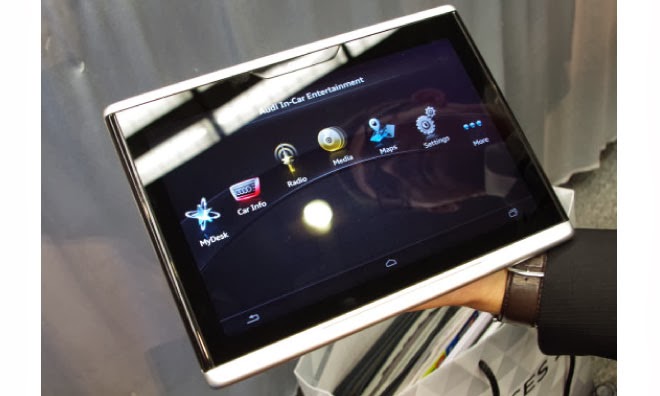
Audi Smart Display, A Tablet PC For Car Operation


Audi Smart Display
Audi is showing; How the automotive future looks like at this year's CES (7 to 10.1 in Las Vegas. ), Among others, with its Smart Display. The Smart Display Audi is based on Android and has a ten-inch touch screen. Current vehicle data rates (such as fuel consumption and distance traveled), plan routes, regulate the air conditioning or the music system of car all can be monitored and modified accordingly.

 These all goes with the Tablet PC Smart Display by the Audi at the CES presented in 2014 - a delight for the passenger or the passengers in the back seat! The Ingolstadt-based carmaker has integrated a number of self-developed apps in the Android device.

This has a ten -inch display, and boasts all the essential features of the things and software available for a tablet, such as the access to the Google Play Store. Even the Internet browsing works well while driving, the Smart Display uses the built- in new Audi models LTE module. Compared to current tablet PCs, the Smart Display Audi looks quite chunky.

This is due to the robust aluminum housing. According to Audi, the device is designed so that it can withstand temperatures from minus 40 to plus 80 degrees Celsius without any damage to the hardware and software- so it can stay in the car even on sweltering summer days and cold winter nights.

The Audi Smart Display is still in development stage. When the device serial production attained and the price can be announced, until then we have to wait. But it is clear that Audi will offer its Smart Display only as an adjunct to a new car; individually it should not come on the market.