Wednesday, 22 January 2014

AMD Released Warsaw Opterons With Lower TDP


Warsaw Opterons
AMD have officially presented two Warsaw Opterons 6338P and 6370P. As expected, both are specified with 99 Watt TDP, the clock rates are correspondingly lower than that of the 115 -watt models published earlier in 2012. Without much notice, AMD has released two new Opteron models namely 6338P and 6370P.

Both server processors are compatible with the LGA socket G34 and are at a TPD of 99 watts higher performance per watt than their offer Abu Dhabi predecessor mentioned. The new CPUs are identified by the suffix P, arrange themselves but apart from that in the existing Opteron 6300 - a naming scheme: The 6338P over clocked under load with 2.0 to 2.5 GHz and the 6370P reached 2.3 to 2.8 GHz.

Thus, the Warsaw models are the slowest 12 - and 16-core Opteron processors in the line-up, only the Opteron 6366 HE is clocked even more lower. The relatively low frequencies and the mature 32- nanometer manufacturing allow AMD to specify the Warsaw chips with 99 watts, thereby increasing the efficiency will be higher than the 115 -watt models.

Calculation with base clock at baseline provides the 6338P a meager 3 percent higher performance per watt than the 6344, with turbo is 12 percent. Compared to the Abu Dhabi Opterons; the Warsaw processors increased efficiency in 2P and 4P servers.

The Warsaw processors use the older Piledriver architecture, two so-called Orochi. This will be connected in the MCM process by HT links on a carrier. This also results in the four- channel memory interface, bringing the chips are well suited for RAM - intensive applications in a comparatively low server.

How to Access Computer with Android Mobile or iPhone

Access Computer with Android
In this world of technology, everything is possible with the help of these technologies. Most of you have tried to connect with your personal computer from the mobile and would have failed. But there is a fantastic way to connect your personal computer with your mobile very easily. In this post, I have shared an information regarding how to connect or access your files in your personal computer from the mobile itself. You can access the pictures, images and as well as the music files remotely from the mobile.

The best solution for this is easily done an application called PolKast. This application is a best application which can be installed in your mobile and by using this application; you can access the pictures, videos and music from your mobile.

Polkast is one of the best cloud services and it is fantastic; through which you can easily create your own personal cloud service with this mobile application itself. By using this pilkast application, you can select any size of file on your personal computer and you can share them using polkast applications. By using this polkast, you can easily access the files which have been shared in the polkast application, from your mobile itself. This polcast application can be also applicable for the Tablets and you can access those shares files from the tablet too.

In order to make the polkast app to work perfectly, we have to install the server app on the personal computer which you want to share and also the client application on the mobile device which may a mobile phone or a tablet. You can easily download any of these application from the polkast websites very easily for totally free of cost.

Steps to Remotely Access the Computers from your mobile:

-> Step 1: The first step is to download the PolKast in the personal computer where you need to share your files and access it from the mobile.

-> Step 2: Go to PolKast website; In the website, click over the Desktop option which is shown over the PolKast website.

 -> Once you have clicked that image, it will leads to you to the download page. Download the server version for your computer and install the application on your personal computer accordingly. Install the application in your personal computer and run the PolKast server app on your personal computer.

-> Register your account on the PolKast and once you have registered in the PolKast website. You will be directed to the main screen on the PolKast application, where you can choose various files from your personal computer which you need to be get remotely accessed from your mobile phones.

-> Now download the PolKast application in your mobile phone, and install it in your mobile phones.

 -> Once you have successfully installed the PolKast, you were asked to login in thePolKast.  

-> This will shows you the dashboard screen for your account, in which the shared files can be accessed from your mobile phones.

How to make your own Folder Icons in the Windows XP operating system

folder
Windows XP operating system is one of the best operating system which is installed in most of the devices in this universe. Because of its simplicity, the Windows XP operating system is considered as the best operating system in the world. You can even notice that the people who were using the Windows XP operating system would never go for the latest upgrades of the Operating systems. Because of the ease in the Windows XP operating system, the people used to stay in the Windows XP operating system.

There few tips that can be still used by the people who were using the Windows XP operating system. In this post I have share a bit of information for the Windows XP operating system, and in this I have discussed the steps how to make your own folder icons in the Windows XP operating system.

Generally, we used to store different kinds of files and informations in the each folder. But the thing is that, the icons for the folder will look similarly. If you were changing the icons according to the kinds of information which are stored in a folder, then we can easily access the informations very easily and quickly too.
The steps are given as below;

Step 1: Right click over the Folder which you need to change the Icons in the Windows XP operating system. This will show you pop-up menu in the screen.

Step2: In the pop-up menu, select the Properties in the Menu.

Step3: In the property window which you have selected, click the customize tab in the menu and also click on the change Icon button.

Step4: After clicking the Change Icon button, the pop-up box with series of icons and pictures is available for you. You can click on the any image you want and you can select the icons to be the Folder Icon for your Folder. This helps you to choose the Folder icon in the Windows XP operating system.

How to add extra Icons on the Icon Menu: 

If you want to use a custom image as your icon in the Windows XP operating system, you have to add your image in the %SystemRoot%\system32\SHELL32.dll.

-> In order to make your image as a custom icon, select an image which you want to make as icon. • Open an image editor application on your personal computer.

• Now crop the image into the size of 24 x 24 pixel or 16 x 16 pixel resolution in the image processor.

• Now save that image into 24-bit bitmap image from the image processor.

• Now repeat up to step-3 in the folder, and then you need the click on the browse button near the top of the image.

• You have to choose the image which you have changed into the bitmap format. Then select Ok button. Finally you have changed the custom icon in the Windows XP.

How to Connect All your Computers with Single Mouse and Keyboard

KVM Switch
Nowadays it’s a common thing having multiple Systems in their home like a Desktop and a laptop, Even there are a lot of people who work with two or say multiple desktop computers and its hectic to work with two mouse and two keyboards, Did you ever heard that we can actually operate multiple computers using a Single mouse and keyboard? Yes that’s possible using various methods, So here are a few methods which we can try to overcome that.

This can be done through hardware and software either ways but the important thing is the computers should be connected to each other via LAN or any Network connector.

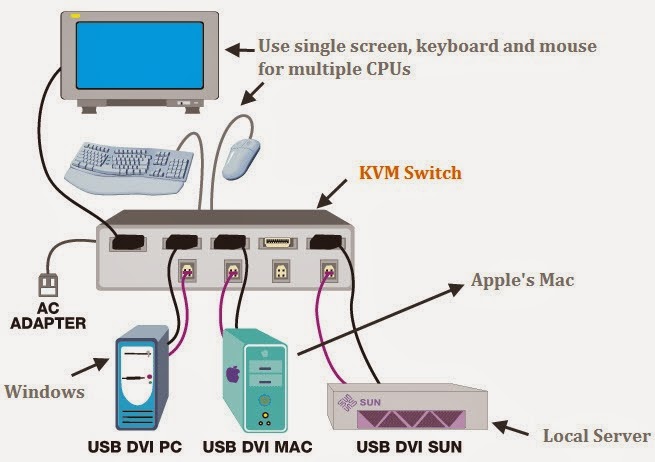
1. KVM (Keyboard, Video, Mouse) switch, its hardware or say a cable in specific which will be a short one for keyboard, video and mouse. These are actually commonly used in Datacenters where lot of servers are placed in a single rack with a single keyboard, monitor and mouse. It will let you share a single mouse, keyboard and monitor across two or multiple computers. There is also KM switch cables using which you will be able to share a single keyboard and mouse with two computers that have two separate monitors. The best thing about using these hardware cables is they give really fast connections which makes it worth to go and makes the work more efficient. One of the main advantage of using KVM switch is that it saves space which would have been occupied if multiple keyboards, mouse are used.

2. If you don’t want to add any hardware cables there are a few software’s too which we can try, First thing to try out is Input Director, which is a Windows-only utility that’s easy to install and is totally free for non-commercial use. At first, you need to install this Input Director program on all your Computers. The computer that is physically connected by keyboard and mouse becomes the Master computer whereas the other systems will be Slave computers. Just make sure you never shut down the Master computer without turning off the Slave computers first because by doing that you will lose access to the keyboard and mouse which are physically attached to the master computer. There`s another program called Synergy , this one is a bit harder to setup than Input Director , but it’s free and a open-source thing which supports Microsoft windows, MAC OS and Linux. Both these programs are small ones which won’t eat up much resource your computers. On using both the software’s you don’t need to press any switches or buttons which was there in the case of KVM switches. Simply just move your cursor to drag drop or copy paste across your multiple computers in a easy manner. 

People who don’t mind spending for a peaceful computing will love to go for the hardware way and the Users who don’t like to spend money and want a clean desk without messing with cables will go the software way. Happy Computing.

Tuesday, 21 January 2014

Google X Developed Contact Lens That Helps Diabetics

Google Contact lens

Google Contact lens
Google has developed in his research laboratory Google X an electronic contact lens that could help diabetic patients. It regularly measures the blood sugar level of the tear fluid and can thus warn of high or low blood sugar levels.

With an electronic contact lens Google wants to make the daily life of diabetes patients easier because the contact lens that they wear can monitor every second, which measure blood glucose levels in the tear fluid.

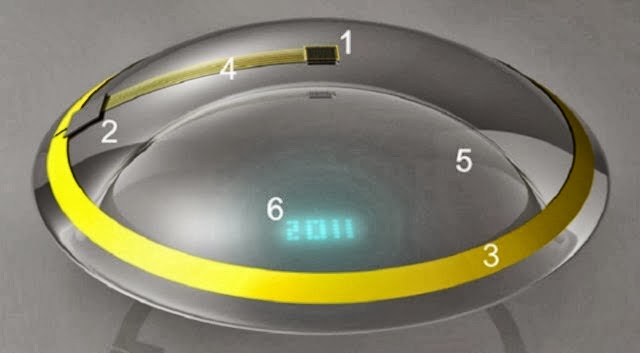
So patients no need to prick their finger to detect a drop of blood their blood sugar levels. This is also the problem encountered by many diabetic patients to measure their blood sugar levels too rarely. Tiny sensors and chips and an antenna are installed between two layers of a soft contact lens, which will allow extremely precise measurements.

Google has built several prototypes, including those measure blood sugar levels per second evenly. Currently, they are experimenting with integrated LEDs as an early warning. It is still developing at a very early stage, but they were conducted several clinical trials earlier, under which the prototypes were improved.

It can be released once the clinical trials were completed but will still take some time. Currently, Google is in talks to with the U.S. health supervision FDA. Google wants to collaborate in the further development with partners who have experience in bringing such products to market. The partners will develop among other apps, of which the measurements are provided to the winner and his doctor.