Wednesday, 29 January 2014

Top 5 Best Tablet Alternatives to the Apple iPad

Compal Tablet

The trend setter when it comes to design the Apple , “iPod” which has given birth to the world of on the go music players, then it was the “iPhone” which emerged the new generation of mobile phone, and the recently launched “iPad”, which was an head turner towards the touch screen for mobile computing (which already existed).

It is guaranteed that the Apple iPad will sell but it lacks many features such as multitasking. (Such as the lack of flash player)

It was the iPhone and again it looks like it had happened with the iPad; manufacturers are very eager to bring their own touch screen tablet computers, the latest being the WePad from German company Neofonie. So let us wait! Apple iPad is not only the game present in town. Sure it has got fancy interface, but these following ten tablets wins the fight between hardware devices, which is very crucial for many consumers. Here are 10 alternatives for the iPad.

1. Archos 9 PC Tablet

Archos was an important player in the MID market since it was launched. The Archos 9 PC Tablet is the manufacturers biggest slate device to up to date. The Archos proves that Apple is not only the one to build good looking devices. It has a price tag which starts at $549, the Archos 9 PC Tablet it is an awesome device and has beautiful looks. It boasts an Intel Atom Z510 1.1 G Hz processor, 1GB Ram, and which is also available in two variants, 80GB & 160GB. A very high resolution 9-inch touch screen and a two way positioned leg-stands make it flawless for hands free and media on the and there is no need for the purchase of additional equipments. It runs on Windows 7, also supports full high definiton video playback, it has a built-in webcam for video conferencing & Skype and also supports flash playback.

2. Compal Tablet

It is the working prototype which was shown at the CES 2010. The Compal tablet boasts an 7-inch display and runs on Android 2.0, it is powered by next-generation NvidiaTegra 2 processor. The presence of this chip on this device supports 1080p video playback, and has good battery life.

3. Dell Mini 5

Dell Mini 5 it is the device with smaller dimensions present on the list which boasts an 5-inch touch screen which makes it easy to use. This device comes in with a faster 1GHz Snapdragon processor which also has other features such as 3G, Bluetooth and Wi-Fi connectivity. The outstanding feature of this device is to make phone calls and also has a awesome 5 megapixel camera

4. Fusion Garage’s JooJoo

It boasts an 12-inch screen and an built-in camera, it is an efficient competitor to the iPad . It can support 1080p of video streaming and also supports flash products. It boasts an Intel Atom / NVIDIA Ion which powers this tablet which has a good interface design and beautiful visual experience.

5. Google and HTC Tablet

Google has been already challenging duels with Apple in the mobile devices – the Google boasts an Android OS and also the Nexus One phones which are competition ,with iPhone directly Google may partner with HTC – it is the company behind the Nexus One – for any tablet computing initiative. The report already says that Google Tablet is already under development since the past 19 months. HTC can be an trusted logical choice of partnership. As still nothing has been announced officially Google Tablet is just on the entrant list for now.


Tuesday, 28 January 2014

How to Create My Own Animated GIFs Online - 5 Best Ways


GIF
GIF: Graphics Interchange Format was developed in 1987 by CompuServe; GIF is a process in which images are compressed without comprising with the quality of the image. If you go through internet, you will find lot of gif images in almost all websites, nowadays the most famous social networks like Facebook and twitter are flooded with gif`s. Tumblr is one such pool for gif images where you can find lot of gif`s , they are fun actually.

Well even you can create a animated gif on your own, creating your own animated GIF in a online website is the best way as it is more customizable and gives less burden to the users. It hardly takes 5 minutes to create a GIF, lets go through some of the famous websites which are user friendly even for a beginner to create it easily.

1. GIFMaker.me is a free website where you can upload a max of 10 images at a time; also you can make a gif directly from a YouTube url. The image limitati.on is 2mb. In the control panel of the website you can also see thumbnail preview of your animated GIF before you create it, It also gives you time to customize various other settings as well. The only disadvantage is it doesn’t have option to add text.

2. Picasion has more features in the form of webcam. Apart from uploading photos from My computer it also gives option to add photos from Picasa, and Flickr account, In the webcam feauture you can set a timer and the number of shots the webcam has to shoot, later it can be customized into a GIF, like GIFMaker this too has disadvantage of not having ability to add text.Picasion is one of the most commonly used website to create GIF online.

3. ImgFlip is another website where you can create your own GIF, it actually gives you option to add video urls from any website and supports formats like flv, avi, mov, wmv, mpeg etc. It has an added feature of adding texts to the gif.

4. Gickr: This one is a good website for creating gif`s as it doesn’t considers the image size limit and like other 3 websites mentioned above Gickr too has all the custom options to personalize your creation.

5. Make a Gif (makeagif.com): Just another option for you which have all the common features that a gif online creation website should have.


So here we have came across 5 best ways to create your own animated GIF image online. Creating it online is the best efficient way, even you can create a gif by using various offline tools which you need to download from web but most of the times they will be a trial version or even if its not it may have a watermark on the gif which you will create, so creating it online is always a better option. Go ahead and create one for you, Upload it in Tumblr, who knows if it goes viral it may reach to millions of people in web.

Monday, 27 January 2014

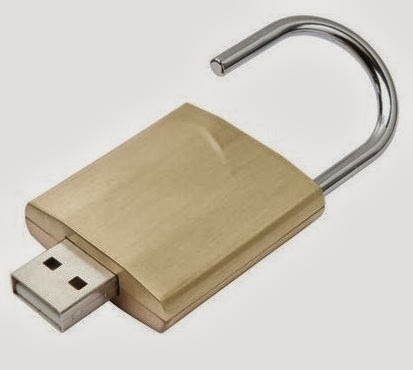
How to Lock your Windows PC or Laptop with USB - Extra Security

Lock your Windows PC or Laptop with USB
Have you ever imagined that you can use your USB drive as a lock to your desktop or laptop? Yes that is possible, it is such a fun thing that the USB drive will be acting as a key to your pc, if you remove the USB drive the system will get locked until you insert it again. Here I will tell you how to do that. It actually works through software called Predator. This kind of security lock is very significant and cool.

There are two links for this: Firstly the trail version Predator and the professional edition Predator. You can download it from these links. This trick works on all the versions of windows including windows 32 bit and 64 bit

Here are the Steps to lock your pc with USB: 

• Download the Predator software from the links mentioned above.

• After downloading the Predator software, connect your USB Drive to the system that acts as a key and then run the software for installation.

• In the mid of the installation you will be getting a pop up message asking for the password. You can enter the password which you want to set and then click OK to continue.

• You will get a pop up window for Preference settings, you can select your language, multiple monitor settings etc.

• Now add the USB Drive to the software by selecting the drive under Flash Drive settings and then click on the key it will generate a key on the USB device which will be used by Predator to monitor.

• You will be now able to see the Predator icon in the taskbar of your pc while the Predator program is running. The trial version of Predator offers usage for 1 month and its for non commercial usage only whereas Professional Edition has all the features and its completely for commercial, professional and single computer use.

• This Predator can even alarm on a high sound if someone enters invalid password that makes it very safe from strangers.

• It also records a activity log, by reading the log you can come to know whether somebody else tried to login to your pc.

When you remove the USB drive from the PC, the keyboard and mouse are actually disabled and the monitor screen darkens and when you are back just insert back the USB drive it will release your mouse and keyboard.

It's easier and faster for restarting your Windows session, and you do not have to retype your password again. Even if you lose your USB drive, you can use the password you have set while installing the software to unlock your pc, It also has a feature of sending alert emails to your mailbox and messages to Twitter. And last not the least PREDATOR can protect multiple desktops and laptops with the same USB flash drive.


I hope this will be useful for you so add an extra layer of security to your pc in a fun way.

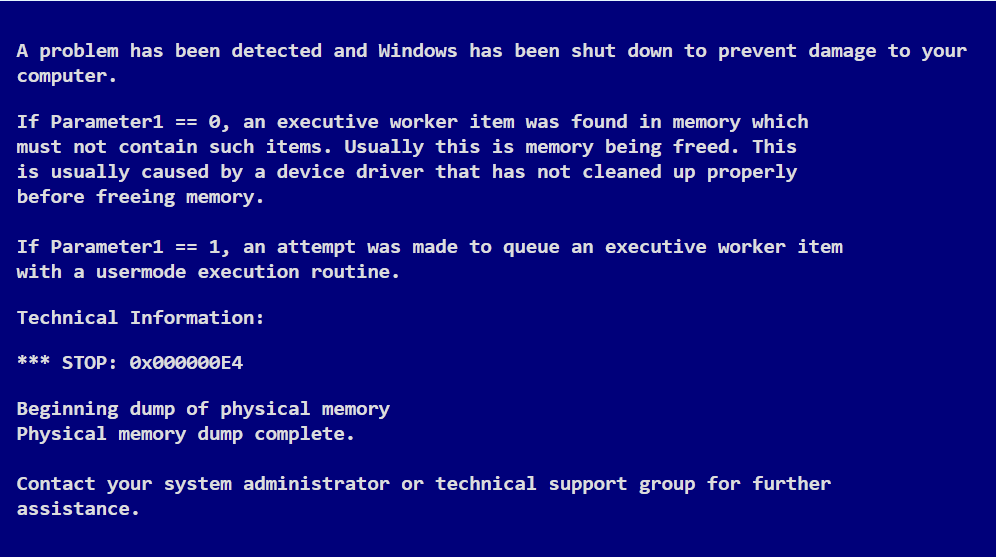
How to Fix Blue Screen Error in Windows


Blue Screen Error in Windows
Blue Screen Error is a common issue that can be found in the Windows 8 and Windows 7 operating system, and is also called as Blue Screen of Death and it will make us to feel uncomfortable with the operating system. It will makes us to feel uncomfortable when we are working over the Desktop, and also when working with more important files.

Generally what is Blue Screen Error? 

The Blue Screen Error is termed as an Error message which will be provided for the users to denote the critical issues that are going in your personal computer. If a serious problem occurs in your Windows 8 or Windows 7 operating system, then the Blue Screen Error will occur. It also shows you the message that states, Windows has been shut down to prevent the damage to your computer.

There are few severe problems that might happen in the hardware of the system or also with the drivers of the hardware. The Blue Screen Error can occur due to various reasons in the system hardware and also caused due to some software changes in the system.

In this post, I have shared a bit of information regarding how to fix the Blue Screen Error in your personal computer or in your laptop. Various reasons for the Blue Screen Error have been given below;

Problem with Your System Registries and its related items: 

Blue Screen Errorare also caused due to the various issues which are happening in the system registries, and if the problem exists, and also you can use the system registry cleaner to fix the issues which are related to the registry. Most of the people use the utility software to clean up the registry issues with your operating system.

Problem in Software programs: 

The Blue Screen Error is also caused due to the some issues which are related to the software that are used in your personal computer. If you have experience a Blue Screen Error after installing new software, then the software is responsible for the Blue Screen Error. So you can easily remove those installed applications in your personal computer to rectify the Blue Screen Error in your windows 8 and windows 7 operating system. You can uninstall the application by simply accessing Control Panel -> Add or Uninstall Programs -> uninstall the software package which you doesn’t need and also the application which cause Blue Screen Error in your personal computer.

Bugs in Software applications can cause Blue screen error. If Blue screen appears after installing new software, then restart your system and try to uninstall it and see if this solves the problem.

How to Avoid the Blue Screen Errors: 

1. Always use original edition of software to prevent Blue Screen Error and also avoid the pirated editions of the software. 2. Disable unwanted software program, this will provide reduce the Blue Screen Error in your personal computer. 3. Shut down your system properly,alwaystries to shut down properly in your personal computer. This will absolutely prevent the Blue Screen Error.

How to Dual Boot Windows 7/8 and Ubuntu

Dual Boot
Most of the people around this globe has own their personal computer and they can easily complete their various works by easily using their personal computers. The technology has made their life more portable, the laptops have been made their work more portable and they can easily use their laptop for various kinds of task.In this modern world of technology, we use operating system such as Windows 7/8, Mac OS and also many of the people use Linux Operating system. One operating system has a feature which doesn’t found in the; if anyone wants to use both operating system in their machine, then this post is suitable for you. In this post, I have shared information regarding how to boot dual boot in your computer, and here it go;
Steps for Dual Boot (Windows and Ubuntu)

Here you can found the various levels of steps for dual boot your personal computer with Windows Operating system with the Ubuntu.

Step 1: Open your Browser from the Windows operating system, and open the Ubuntu Website.

Step 2: Download WUBI from the Ubuntu website, and click on the Get the Installer in the Menu.

Step 3: Once you have clicked the Get the Installer over the Menu, you will be asked to select the various options and you will be asked to pay $2 for each services that you need to be installed in your personal computer.

Step 4: Now you need to slide down everything to zero (0), and then proceed to download.

Step 5: Now you will be asked to download the files which sized as 2.4MB and click the download files.

Step 6: Download the file and double click the wubi.exe and select yes to proceed.

Step 7: Now start installing the Ubuntu in your computer, provide the installation size to 18GB and select the environment as Ubuntu and select user account, provide user name and password to login into your windows account.

Step 8: Click install and it takes more than 15 minutes to install the Operating system in your personal computer.

 Step 9: After the Ubuntu operating system has been installed in your personal computer, restart your computer and wait for the Boot menu. You will find a menu which shows, Windows and Ubuntu Operating system to boot.

Step 10: Now just click your Operating system as Ubuntu by simply clicking the down arrow button in your Keyboard, this will select the operating system as Ubuntu in your personal computer.

Step 11: Now you need to select the packages which has to be installed as an additional packages in the Ubuntu Operating system, after selecting proceed to install. This will take few more minutes to install.

Step 12: Now you need to enter the username and password for your Ubuntu operating system, this will lead you to the Ubuntu operating desktop screen.

Now you have successfully booted the dual operating system in your computer successfully.