Wednesday, 9 July 2014

How To Extend your Samsung Galaxy S5's Battery Life

S5 Battery
The World of Samsung Galaxy
 
Samsung is yet again set to rule the market with its all-new Smartphone Galaxy S5. While the predecessors of the Galaxy S series have been known to have given excellent results along with remarkable reviews, the latest Smartphone Galaxy S5, again is ready to dominate the game.

Protect your Phone's Battery
 
Today for all kinds and brands of Smartphones battery life is becoming increasingly important. Samsung makes the use of the 2800mAh battery along with the power saving mode option that will help you have a longer battery life. Since Smartphone today has loads of Apps to run along with many other games, one should have a brief idea of the essential tips that might extend the battery life of the Samsung Galaxy S5.

Some useful tips
 
Some of the steps with the help of which one can enjoy using the Samsung Galaxy S5, even when he or she is not carrying travel adapters, are discussed in brief below:
  1. Power saving mode- The first in list has to be that of Power Saving Mode that Samsung provides to all its customers. By clicking this option, one can have a longer battery life, sometimes even for days. This option basically switches off stuff like Bluetooth, Wi Fi, NFC, GPS and all those applications that basically drains the battery. All that one needs to do is to go to the Settings option and click on to the “Power Saving Mode” option.
  1. Brightness- The next easy step is lowering the brightness level. The more the phone stays bright the higher are the chances that it can drain your phone's battery. Another good option that Samsung claims about is the Auto Adjust Screen Tone. With this, your phone will be able to adjust the brightness on its own.
  1. Screen Time Out- Make sure your phone has screen time out with a comparatively lesser time. If it is set at 1 minute or 3 minutes, keep it lesser like 15 seconds or 30 seconds.
  1. My Magazine and other apps- For any kind of Smartphone too many apps can actually be burdensome for the system. Make sure to switch off apps and options that are not used like My Magazine, Gestures, Motion, Air View and all the others.
  1. Bad Network and Wi Fi- If you have a bad network, get rid of it as soon as possible. Not only with a bad network, you are losing your phone's battery life, but also you are losing many hard-earned dollars. For a better access, make sure to use a good Wi Fi.
  1. Extra Extended Battery- Make sure in all cases to an extra pack of Samsung Galaxy Battery. May be it can cost you a bit, but with that you can at least stay contented.
  1. Charging accessories- Apart from all these having a portable charging accessory can be an ideal option. On this aspect, external power packs can be really useful.
Thus, it can be rightly said that protecting the battery life of Samsung Galaxy S5 is not that tough. With an adequate knowledge on the given factors, anyone can protect the precious battery of this unique Smartphone.

Tuesday, 8 July 2014

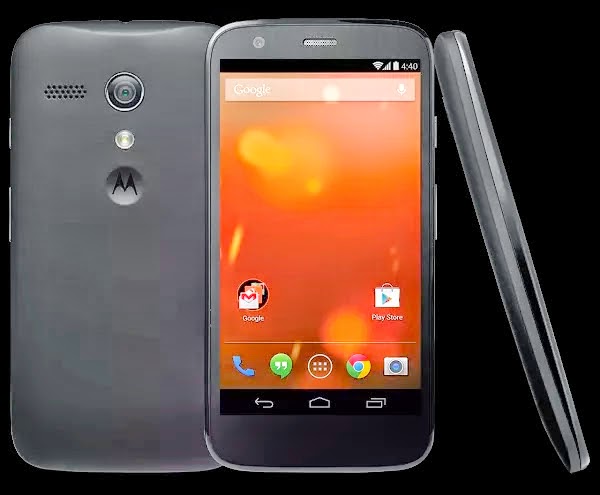
Quick and Smarter way of Hassle Free Updating of Moto G GPe to KitKat 4.4.4


 Moto G GPe
Motorola Moto G Google Play Edition is one of the most successful mid-budgets Smartphone. It offers high end features like Qualcomm Snapdragon 400 1.2 GHz Quad-core processing unit, along with a 4.5 inch HD Gorilla Glass Display at jaw dropping affordable price. As result of such features, Motorola had sold out innumerable units all across the globe. The Moto G GPe has introduced the update to upgrade your phone from Jelly Bean 4.4.2 to Android KitKat 4.4.4. Here are the steps, which would guide you to update the phone without any hassle.
Prerequisites for Updating
  •  Install all the Motorola drivers.
  •  Enable the USB Debugging for updating process.
  •  Install the Android SDK.
  •  Moto G should have an adequate charge preferably over 60% battery level.
  •  Back-up all the necessary data from the phone like the storage, SMS, Contacts etc.
  •  Stock KOT49H ROM and recovery should be installed.
Steps for Updating Moto G GPe to KitKat 4.4.4
a. The Motorola customers are required to download the OTA update zip file of approximately 162 MB from the Motorola website.

b. The users should switch off their phone completely. While switching on the phone the users are requires pressing the Volume Up + Volume Down+ Powers keys simultaneously. Very soon, a boot mode screen would be available.

c. Using the volume keys users can down the menu and should select the Recovery option by pressing the Power Button.

d. In the idle of the screen, a warning Android logo would be displayed.

e. Moto G user now should press and hold the Volume Up and Volume Down for five seconds, then gently release the Power button.

f. The Moto G will now be booted into stock recovery mode. ‘Android System Recovery <3e>’ text would be displayed at the top of the screen.

g. Users should now connect their Moto G Smartphone to the PC via USB cable.

h. Again, use the volume keys to highlight ‘apply update from ADB’ and select the said option by using the Power Key.

i. The Moto G users should locate the folder on their PC where OTA file has been downloaded in the earlier step. Once you get inside the folder, then press Shift Key and right on an empty space. A list options would be displayed in the pop-up menu, click on the ‘Open Command Window Here’.

j. A black screen command prompt will appear on the screen.

k. Users should type the following in the command prompt to side load the OTA:
adb sideload 8139a3b77162488d3bc058c378e28ff2ea22ae78.KOT49H.M004_5-KTU84P.M003_18.zip

l. The users are requires hold patience as this process would considerable time to finish. Once the process is completed select the ‘Recovery System Now’ from the recovery menu.

m. The Moto G Google Play Edition will now reboot into updated Android 4.4.4 KitKat ROM. Just check the Android Version for your satisfaction.

With this, the process of updating the Android Operating System is successfully completed. Now enjoy your latest Android your Moto G GPe handset and unfold all the wonderful opportunities and features provided by it.

Samsung Galaxy S5 Tips and Tricks

Samsung Galaxy S5

The Samsung Galaxy5 is one of the most successful Smartphones manufactured by the Samsung in the recent. The Samsung Galaxy comes loaded with a large amount of inbuilt and other kind of features and technological advancement.

Here are some of the important tips & tricks:

a. Finger print Scan Unlock feature
 
The Galaxy S5 now comes with the finger print scanner located on the home button in the invisible form to make your phone inaccessible to unknown persons or want to save your content and data from even your friends and family members. It can be set up by going to the Settings, then Fingerprint option.

b. Galaxy S5 Basic Mode
 
To make yourself acquainted with the simple and necessary features of the Galaxy S5, then use it in the Easy Mode. The Easy mode could be switched ‘on’ and ‘off’ from the Settings. The Easy Mode offers a simpler and less cluttered screen, which makes it easier to find the apps and features.

c. Galaxy S5 offers voice control
 
The Galaxy S5 smartphone can be smartly and intelligently controlled from voice based control applications like S-Voice and Google Now. These apps let the user perform all the functions from taking calls to streaming videos with the voice. These functions can be activated by simply switching on and off from the app setting.

d. Lower the Battery Consumption of the Galaxy S5
 
The Galaxy S5 has a Ultra Power Saving mode which reduces the battery consumption level by turning the screen black and white and limiting the app access while still allowing the user to make calls, send texts, use the internet and other features. This app is known to save 5% of the battery, which makes this Smartphone last longer with the entire requisite feature.

e. Automatic Answering by just picking up
 
The Galaxy S5 has the advanced sensors, which helps easily to know when the user picks the phone, places it next to his head and could automatically answer a call without wasting the time on tapping the answer pop-up when the user hands are full or busy. This feature can be activated through the Setting, then Motions and gestures, click on Direct Call.

f. Multi Tasking Made Easy
 
The Samsung Galaxy S5 offers Multi Window mode, which allows the users to use the smartphone for performing more than two applications at the same time. Multitasking makes the phone multipurpose and highly useful in some situations. This feature could be activated from the Settings as well.

g. Faster Downloads
 
The Galaxy S5 have Download Booster app that allows the users to combine the Wifi and LTE together at the same time to download large files with pace and smoothness. This feature limited to the certain carriers only. This feature can also be activated from the Settings.

h. Auto Switch Mode
 
The Auto Switch mode is an innovative feature of the Samsung Galaxy S5, which is especially designed for the users, which counters bad WiFi networks. Once this feature is turned on from the Setting then it will turn on the Wifi when the phone finds a cellular, if not it will switch off the WiFi. It leads higher data usage but it is worthwhile for many users.

Must-to-do Tips for Samsung Galaxy S5 Owners


Samsung Galaxy S5
The Storming Release of Samsung Galaxy S5

The current release of Samsung Galaxy S5 was really looked forward to by many people from all around the world. While looks and screen size was always the first priority for the Samsung, the users have also been given the privilege of enjoying the applications in a right way.

14 Useful Tips

With each day the Samsung Galaxy S5 is witnessing the rise of its users and customers. This all-new smartphone can be really an interesting choice undoubtedly, but at the same time this phone calls out its users to know about interesting stuff that can be sometimes necessary.

  1. Security- Security is always important. In order to make it more confidential it is better one should open the Settings section, following which he or she should choose “Fingerprint”. After that choose the first top option that is “Use Fingerprint Recognition”. This will be really beneficial for all.
  1. Free Subscription Offers- In order to please its users Samsung has teamed and collaborated with many companies. All you need is to have a Samsung account after which you can check out the “Galaxy Gifts Tab”. This will open up a multiple range of apps.
  1. Settings View- Customize the looks of the settings view. Make it listed in order to access it faster and simpler.
  1. Customizing notification area- Customize the notification area with stuff that is used mostly by you. Handy features like power saver, toolbox can be kept in this area, in order to save more time.
  1. Battery saving modes- Since you are having Samsung Galaxy S5, you also have the option to save battery when you are going low on it. Switching the phone to the Power Saving mode can actually make your phone stay active for few days.
  1. Health App- Samsung has introduced S Health application with help of which you can maintain a good health. This fitness tracker is a must use for all Samsung Galaxy S5 owners.
  1. Avoid battery consuming features- Features like Wi Fi, Bluetooth, NFC should be definitely switched off when you are not using them, as these can unnecessarily drain your phone's battery life.
  1. Touch sensitivity- Pamper yourself by this phone by increasing it's touch sensitivity that makes you work with it simpler and easier. By enabling the option, you can also use the phone with a pencil.
  1. Lock Screen- Make sure to black out the lock screen of your Galaxy S5 phone. This will help you to enjoy a little better battery life.
  1. Motions, Gesture, Air View- For a better battery, make sure to turn off options like the Motions, Gestures as well as Air View features.
  1. Backup- Your Samsung Galaxy S5 already has Google+ installed. Make the best of it by creating a back up of all your personal data like photos and videos in the Google+'s account.
  1. One handed mode- Samsung Galaxy S5 is undoubtedly a big phone. In order to use it comfortably you should switch the one-handed feature that will be able to shrink the screen size.
  1. Cinema Mode- For a better experience of watching movies, select the “Cinema Mode” that will provide best colour replication.
  1. My Magazine- My Magazine is a unique option provided by Samsung, letting it's users to have a great reading experience from all genres and on all current issues.
The Galaxy S series of Samsung mobile phones makes a complete set-up with the release of the latest of Galaxy S5 that offers loads of options to all its users. Whether it is about having better screen touch or whether it's about taking care of your health, each and every feature is bound to leave you speechless.

Saturday, 5 July 2014

Converting LG G2 To LG G3


 LG G2

The XDA forum has developed a new firmware version of LG3 Optimus UI, which can be used in LG2. By following the steps below, it can be installed in LG2 and a 4K display can be experienced.

Requirements: The following things required in order to install LG3 Optimus in LG2:
  • The LG2 phone has to be rooted.
  • The phone has to have a custom recovery installed.

Disclaimer: The steps, which are required to install the LG 3 Optimus in LG 2 phones, has to be followed word by word. If a person misses a step or does a step incorrectly the phone may turn into nothing more than a toy phone. If such a situation arises, no one shall take the responsibility for turning it into a showpiece other than the person who was installing it.


The procedure will not protect the phone’s internal memory. To protect the memory of the phone installing a back up is essential. If the backup application is installed properly, all the files could be saved. Either it can be backed up manually as well as by using an appropriate application. Manually it could be done through the use of USB port. Different backup application software are also available that can be easily used to save the internal memory of the phone.


The easy steps that follow are a simple guide to convert a LG G2 phone into a LG G3 phone. What is important to remember is, these steps are applicable for the model - LG G2 D802. No other model will respond to these steps.

How to install LG 3 Optimus in LG 2:

The following steps have to be followed to the line to get the 4K effect in LG 2. :

Step 1: The ROM file named Optimus G3 V1.0 has to be downloaded. Care must be taken while downloading and only the recent version should be downloaded.
Step 2: KK Baseband must be downloaded for the model number.
Step 3: Both the ZIP files must be copied to the root of LG G2.
Step 4: The LG G2 has to be rebooted in the recovery mode. It can be easily done by pressing down the volume button and the power button in the phone and letting it go after the appearance of the LG logo, and it will come back after the phone has been booted in the recovery mode.
Step 5: Clear up the phone. Refresh the data, software and the system in the phone. Give it a good wipe.
Step 6: And the final step in converting a simple LG G2 into a LG G3, giving it a 4K experience is to remember that, the ROM has to be installed from the recovery mode, install the ZIP files and then flash it in KK baseband.

By following these 6 simple steps, the LG G2 user will be able to experience the user interface used by the LG G3 users.