Wednesday, 29 January 2014

Alleged fake WhatsApp Application brings banking Trojan


WhatsApp
Kaspersky warns of a new spam wave that attracts users with an alleged WhatsApp version for the PC. An alleged fake WhatsApp campaign reaches users via e –mail and the downloaded PC version turns out to be banking Trojan. They are sending mail stating that “Finally WhatsApp for PC and eleven pending friend requests are waiting for you!” This looks s sort of the youngest Hoax of cyber criminals out of users reached by e-mail, and points to a download of the alleged first official PC version of WhatsApp.

But instead of downloading the messenger they downloaded software which includes a dangerous banking Trojan, it steels the the private online banking information and passwords from the victim once downloaded and sends back to the culprit. Malware expert Dmitry Bestuzhev of Kaspersky Labs already last week warned in their website SecureList before the spam email campaign. So far, there is no official announcement of WhatsApp PC popular messaging service officially only and it is only as a mobile version.

So if you find one in Portuguese written message from Whatsapp in your mail inbox, then it could be a by a deceptive hoax that roams currently in the network. Instead of a Messenger download it downloads a hide PC Trojan. The email makes reference to a dubious download link that says “Download now ". The malware is disguised as a 2.5 megabyte MP3 file and not only sends private data to the criminals, but also invites up to ten megabytes of viruses and other malicious programs on the computer.

Perhaps the Brazilian WhatsApp users were the target of the attack, according to their post. Note: As long as you do not click on the download link, you are safe. Since the Trojans need to be installed manually in order to get into the computer.

Microsoft SkyDrive is renamed OneDrive

OneDrive
As part of the renaming campaign, Microsoft is apparently feeling generous and have been given 20 GB of extra storage for one year. However, it is not yet clear how Microsoft selected this “valued customer“. The software giant Microsoft has entered in to the conflict with the British TV channel Sky and has to change the name of its cloud storage SkyDrive.

It is still unclear whether SkyDrive should be renamed only in Britain, else throughout the globe. In future the SkyDrive will be called as OneDrive making the name similar to their game console Xbox One and the Domain onedrive.com will soon replace the skydrive.com and already a promotional video has been published.

The agreement entered with Sky Broadcasting Group has given reasonable time to migrate to the new name and the whether the agreement include cash payment was not yet known. This is the second set back for Microsoft earlier it was forced to retire from use of “Metro” in the user interface of Windows 8 since the Metro AG group challenged the use.

Defeated in court by British TV channel Sky in 2013, Microsoft was forced to abandon to SkyDrive brand. Hence online storage file services of Microsoft’s SkyDrive, name will be changed. This was formally announced by Ryan Gavin, head of services and applications, in a blog post without giving much detail.

Samsung Disables Third-Party Accessories In Galaxy Note 3 with KitKat Update


Galaxy Note 3
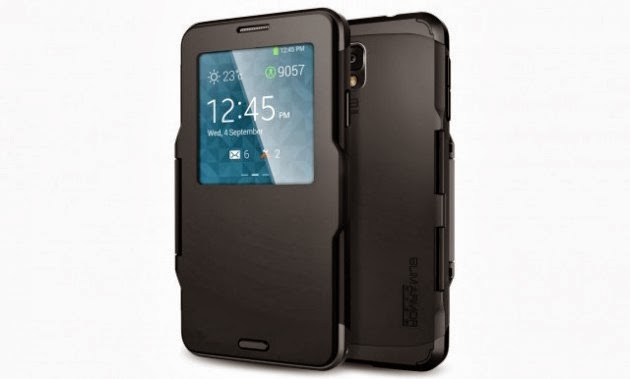
The Galaxy Note 3 will be the first Samsung device, which only works with licensed accessories and disables the third party accessories. If third-party accessories offered without a matching chip, special functions are no longer available after the update has been deployed on Android 4.4. In U.S., Samsung distributed already the update for the Galaxy Note 3 to the latest Android 4.4 Kitkat.

After the update the third-party accessories may no longer work. Note that you may watch that the people are complaining in xda forum. The users report that the Galaxy Note 3 is no longer reasonable to work with Android 4.4 with a special S -View case. The shell supports the S -view window function to display information on the cover.

In addition there is a transparent area on the screen coverage is reduced when closing the cover. Exactly this function no longer works correctly after recording the update. In addition, the cover has a special home button, which also is not working as desired after the update. Reason for this is that the Spigen sleeve is missing a Samsung chip. A user at xda - forum has taken the chip from an original Samsung Case and incorporated into the Spigen cover.

Then the S- Window function was active again, but the home button on the jacket still refused their service. Already in October 2013, there were initial reports that Samsung uses a special chip which will allow only licensed accessories. This project used by Samsung for the first time with the Kitkat update for the Galaxy Note 3. It is assumed that similar changes occur also for other Galaxy devices soon. When Galaxy Note 3 is rooted provided with Android Kitkat; the query for the Samsung chip can be disabled so that the S -View- Windows function runs again.

How to Save or Increase Battery life in Android and iPhone


Increase Battery life in Android
The battery of Android phones and iPhone used to be big concern for all users as the battery won’t last till the end of the day, that’s gradually has improved a lot now but it is still sometimes be difficult to get through a day without running the battery dry. Frequent travelers and business persons know the valud of this battery, because its hard for them to go without charge on their phones. These Android phones and iPhone keeps you entertained, so who will not love to save or increase its battery life, Let’s have a look on few things which can actually save your battery life.

Dim the screen brightness

Everyone loves Smartphone’s large, colorful attractive display, but that’s the one which consumes the max out of your battery more than any other app. Most phones will be having auto adjust brightness option to suit the atmosphere lightning. Though Auto brightness mode will save lot of battery for you, keeping the screen in a dim mode will extend the life of your battery gradually.

Turn Off Location Services 

IPhone and iPads are having the inbuilt GPS for many functions, such as Google maps. You may be surprised when you know that there are many other apps which use GPS, so it consumes a lot of battery life. You can turn it off all Location Services or just turn it off for any particular apps by going to Settings > Privacy > Location Services. You can even turn off GPS settings on your Android phones which will improve your battery life.

Keep the screen timeout short

In your phone there is a option called Screen Timeout which locks the phone after a certain period of time if the phone is idle, Every second gets counted here, so set your timeout to the shortest. On most of the smart phones the Timeout will be 2 mins, you can reduce it to 30 seconds. On a iPhone the minimum is 1 min which we can set.

Disable notifications 

On a Android, iPhone it displays lot of notifications which use up battery life. In both the phones you can disable the notifications of each app. You have to manually disable for all the apps.

Turn off vibration 

Turning off the vibrating alerts on your Android, iPhone can surely help improving your battery life. Go to the Profiles setting where you can disable the vibration.

Turn off Wi-Fi and Bluetooth

Most of the users keep their device wifi and Bluetooth on, which constantly searches out for signals and which is a serious battery drainer. Keeping it turn off and using it on the needed time will definitely add 1 hour of battery life to your phone.

Don't leave apps running in the background

These Smartphones are known for the ability to run more than one app at a time. But it also burns a lot of energy, every app running at background using your phone`s processor and battery.. By killing those apps that you aren't actually using, will drastically save you battery and will improve the processor of your device.

How to Speed Up my Windows 8 PC to Work Faster - 10 Tips

Windows 8
I must say that windows 8 are faster that windows xp or windows 7, whether it’s the booting time or the performance, Windows 8 is ahead of all its previous versions. Are you facing slow issue with your windows 8 ? Its mainly due to lot of unwanted things running in the background or installation of too many apps. Lets see how we can make it work faster than before. Its easy to speed up your windows 8 pc. Below are some tips which you can try to speed up your windows 8 pc.

Remove/Disable Unnecessary services

You can remove/disable unwanted windows services which may be making the pc slow, to perform that

• Press Win + R to open RUN Window, then type the command msconfig in the box and Press enter.

• Now the box opened is System Configuration .In that Window navigate to the Services tab. Tick the checkbox of the Hide all Microsoft services, it will hide the windows services. Now the left upon services are third parties like Adobe , Google, Mozilla etc.These are actually unwanted services which might be eating up lot of resources, uncheck those services and click apply.

Manage Your Startup Programs

• Open the run command and type taskmgr to open the task manager window, navigate to the Startup tab.

• Now you can see lot of programs list which are installed in the pc, select the unwanted apps which you don’t want to startup along with system startup and disable them, now these apps won’t be starting along with system, you can manually start them anytime.

Disable Time-Wasting Animations

Windows 8 uses lot of animations while opening, closing windows, We can disable them.

• Open the run command and type SystemPropertiesAdvanced and press enter, It will open System properties With Advanced Tab. Click on the Setting button in the Performance section.

• Now in the Performance Options Window go to Custom, you will find a lot of effects which are ticked, untick them and apply.

Stop Windows Indexing

• Open the run command and type services.msc, press enter. Look for the Windows Search service in the list, right-click on it and select the option Properties.

• In properties Window, select the start up type as Disabled.

User Recommended Anti Virus

Instead of using third party antivirus programs, Use the Windows included Windows Defender , it’s the same antivirus as Microsoft Security Essentials.

Modify Power Settings

Windows 8`s power plans are same as earlier version of windows. To view the power plan settings, press on the Windows key, in the box type Power Plan, click Settings, and press Enter. Make sure you are using it in Balanced mode which is the recommended one.

Put Your Computer To Sleep

Instead of shutting down the computer put it in Sleep mode, In sleep mode the system goes into a low power state which consumes a very low power to keep the programs active. Using Sleep instead of shut down gradually increases the pc speed.

Optimize Your Hard Drives

In the earlier versions of windows there was a tool called Disk Defragmenter, its named as Optimize Drives too in windows 8. Though Windows 8 optimizes the drives once in a week automatically, it will be good if you make it twice a week.

Registry Cleaner: 

Actually people install and then uninstall lot of programs in the pc, even if you uninstall the program it leaves behind registry files which will remain in the system and after a period of time it can cause slowness, You need to cleanup these registries using a registry cleaner.

Install Latest Drivers : 

Always make sure you install the latest drivers for your hardware’s, if the hardware’s are updated your pc is sure to work better.